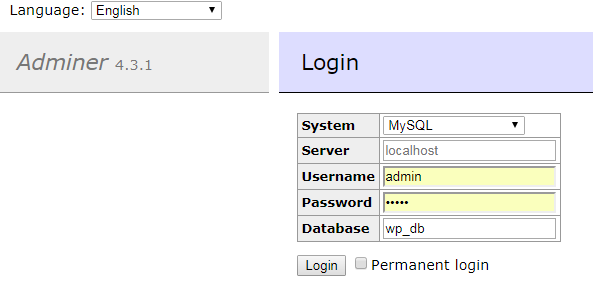
If you want to get access of database of any dynamic site and do not cPanel details. Do not be panic. Here is the quick way of getting access of database. Connect your FTP and navigate to your site root directory. Download adminer.php and upload this file on root directory of your website. Run this file like - http://www.yoursite.com/adminer.php . Now you could see your screen similar to below screenshot. 4 . Fill the database connections details from wp-config.php file and click on Login. 5. Now you have Database panel,You can Export,Import,Operations with database. Cheers❤
Shortcode is the one of powerful feature in Wordpress which provides so much flexibility to enhance functionalities. Sometime you need to detect if current post/page have already specific shortcode. Here is the following two snippets which you could use for check specific shprtcode into your shortcode callback function. Snippet -1(Using has_shortcode() function) <?php add_shortcode('shortcode_name','shortcode_callback'); function shortcode_callback($atts){ global $post; $shortcode_feature = ' '; if (has_shortcode( $post->content , ' shortcode_name ' )){ // Apply your specific code here. } // Do whatever you want return $shortcode_feature; } Snippet -2 (Using strpos() function) $shortcode = '[shortcode_name'; $check = strpos( $post->content,$shortcode ); if ( $check !== false ) { //Return already matched } Prefer to use Snippet-1 using default function of wordpress. Cheers ...
Squarespace have awesome powerful feature to manage images using gallery feature. There is lot of flexible option to present images into different layout. Show images into masonry view is a passion. There is no inbuilt option for show images into masonry view. Here is the following steps to show your gallery images into Masonry view:- 1. Create a gallery page and upload your all images. 2. After uploading all images. Now time to show your all images using Squarespace Gallery Block. You could select your existing gallery page and select gallery type Grid. Now you could there is all gallery images showing. 3. Here is the following code you have to add into Advanced => PAGE HEADER CODE INJECTION of page setting to show your images in Masonry view. <script src="https://ajax.googleapis.com/ajax/libs/jquery/3.3.1/jquery.min.js"></script> <script src="https://cdnjs.cloudflare.com/ajax/libs/masonry/4.2.2/masonry.pkgd.js"></scrip...

Comments
Post a Comment